I am trying to change my Password Manager from Dashlane to Bitwarden. I did Export from Dashlane via cvs files but Dashlane put them in a zip file. I then did Import to Bitwarden after un-zipping the files. In my Bitwarden Vault I now have passwords as expected- but no Company names. How do I find the company names? Should I delete it all in Bitwarden & do it again or any other suggetions please?
@Adjer Welcome to the forum!
Could you check first if the csv file from Dashlane does contain the “Company names”?
When you imported the credentials.csv file into Bitwarden, did you specify the File Format to be “Dashlane (csv)”?
Also, what version of Dashlane are you using? Bitwarden’s Dashlane importer is current as of October, 2024, so if Dashlane has introduced any format changes to their CSV exports since then, that could be causing problems.
Please open your credentials.csv file using a spreadsheet app (e.g., Excel) or text editor (e.g., Notepad), and copy the first row (which contains only column headers), and paste it into your response. In addition, if you opened the file using a spreadhseet app, please make a note of whether any of the columns are blank (no data below the column header).
Thanks for your reply. I have Dashlane version 6.2541 installed so I will attempt to update it as 1st move. What then, clear all the password data from my Bitwarden vault? Delete the current csv files I have? Export/Import again? Nb.I am not a techie & 92 yrs old so please be patient. Adjer
Thanks for your reply help. Yes I specified Dashlane as the csv import file.It seems I have Dashlane V.6.2541.2 currently installed which is an old version.I have never changed it since I started with Dashlane. Seems I need to start again with a newer version? Adjer.
Actually, according to Dashlane’s release notes, you have the most recent version (released yesterday).
If you are going to attempt another import, then yes, you should purge the contents of your Bitwarden vault first (otherwise, you will end up with duplicate entries). To purge your vault, log in to the Bitwarden Web Vault (e.g., vault.bitwarden.com), navigate to Settings > My Account, then scroll down to the red box labeled “Danger Zone”, click on Purge Vault, and follow the prompts.
If you had added any data to your Bitwarden Vault after you made the original import of your Dashlane CSV, then those added items will be deleted when you purge the vault. If you have anything in your Bitwarden vault that you wish to keep, then make a copy, or create an export of your entire Bitwarden vault. Please let me know if you require instructions for this.
If you’re going to start over with a new export from Dashlane, then yes, it would be a good idea to delete the original files. However, it would be safest to first export the new ZIP file from Dashlane, and then delete the old CSV files.
Like I said above, it seems that you already have the newest version, so starting over probably wouldn’t make a difference.
The best thing that you can do is to respond to the requests for information in my previous comment:
Thank you for your reply. All my Dashlane data is present in the csv files. Only Passwords & my email address (on some sites email is used in place of user name).
I have now deleted all data in Bitwarden because it is incomplete. My Dashlane version is up to date as of Oct 25. V6.2541.2 Adjer.
You seem to be contradicting yourself. If your Dashlane export contains “only” your passwords and email addresses (or usernames), then it seems that the company names for your accounts are indeed missing from your exported CSV files. Please clarify this apparent contradiction in your statements.
Regardless, we can make no progress with helping you until you provide the information that I have requested previously, and that I am requesting now for a third time:
Thank you for your reply: I have all Dashlane Data present in the file named Credentials csv. I have them displayed in a text editor as you instructed. Col 1 has user names mostly my email address. Col 2 has a few more user names Col 3 has company names Col 4 has Passwords Col 5 has Notes Col 6 has url company addresses. Does this comply with Bitwarden Import requirements? Adjer
Please use your mouse (click-and-drag) to highlight the first row of text in the opened CSV file, and press the keys Ctrl+C to copy the highlighted text. Then,as a reply to this forum comment, place the cursor at the end of your response, and press the keys Ctrl+E followed immediately by Ctrl+V, which will format and paste the highlighted text from the first row of your CSV file (do not touch your mouse or press any keyboard keys between when you press Ctrl+E and when you press Ctrl+V).
It should look something like this:
```
username,username2,title,password,note,url
```
Thank you for your reply. Another problem has now come up. When I try to import using Tools there is no “import display” available so I cannot have a 2nd try at loading Dashlane data.??? Adjer
| username | username2 | title | password | note | url category | ||
|---|---|---|---|---|---|---|---|
I do not understand what you mean by this.
Please follow the instructions given below. I would recommend that you keep track of the numbered steps ( ,
,  ,
,  , etc.) to make sure that you do not skip any of the nine steps — the given instructions have to be followed exactly.
Start by logging in to the Web Vault. For example, if you are in the Bitwarden Desktop app, you can access the Web Vault by clicking on “Go to web vault” in the Help menu:

Then, after you have logged in to your Web Vault, click on Tools in the left-side navigation menu (which will reveal three additional menu items.):

Among the three menu items now shown under Tools, you should click on Import Data:

You should now see the Import Data screen on the right.
 Next, click on the File Format field to open the drop-down menu:
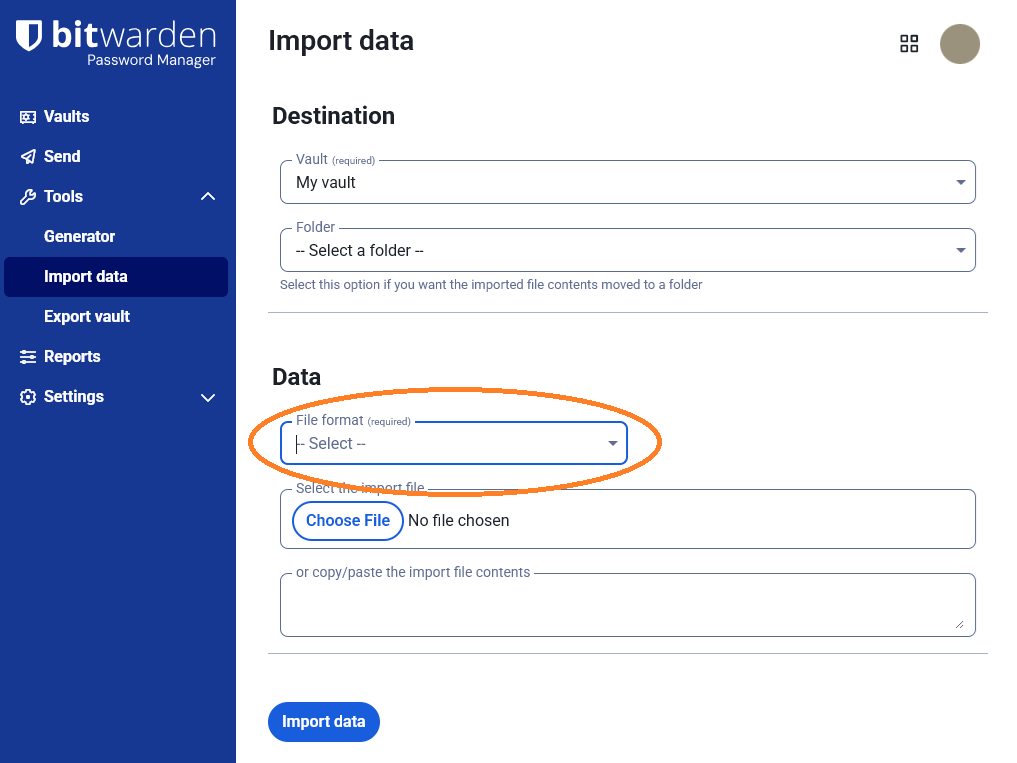
 Now, you have to select (click on) the option “Dashlane (csv)” from the file format menu:

 The next step is to click on the Choose File button:

 In the “Open” dialog window that pops up, select the
 credentials.csv file, and click on the button labeled Open:

 Finally, click on the Import Data button at the bottom of the screen:

 You should see a success message, similar to the following, where you can click OK:

Than you for your comprehensive instructions. I now have successfully populated Bitwarden with my Dashlane data. I now have to learn how to navigate the site & use it successfully. Thank you for your patience. Perhaps I should explain that I am in my 93rd year & trying to use this technology to the best of my limited ability. Any further advice will be appreciated. Than you grb very much. Adjer.
You’re welcome! If you have any further questions, feel free to start a new forum topic.
This topic was automatically closed 30 days after the last reply. New replies are no longer allowed.