What is this HTML block I can’t remove from the forum post?
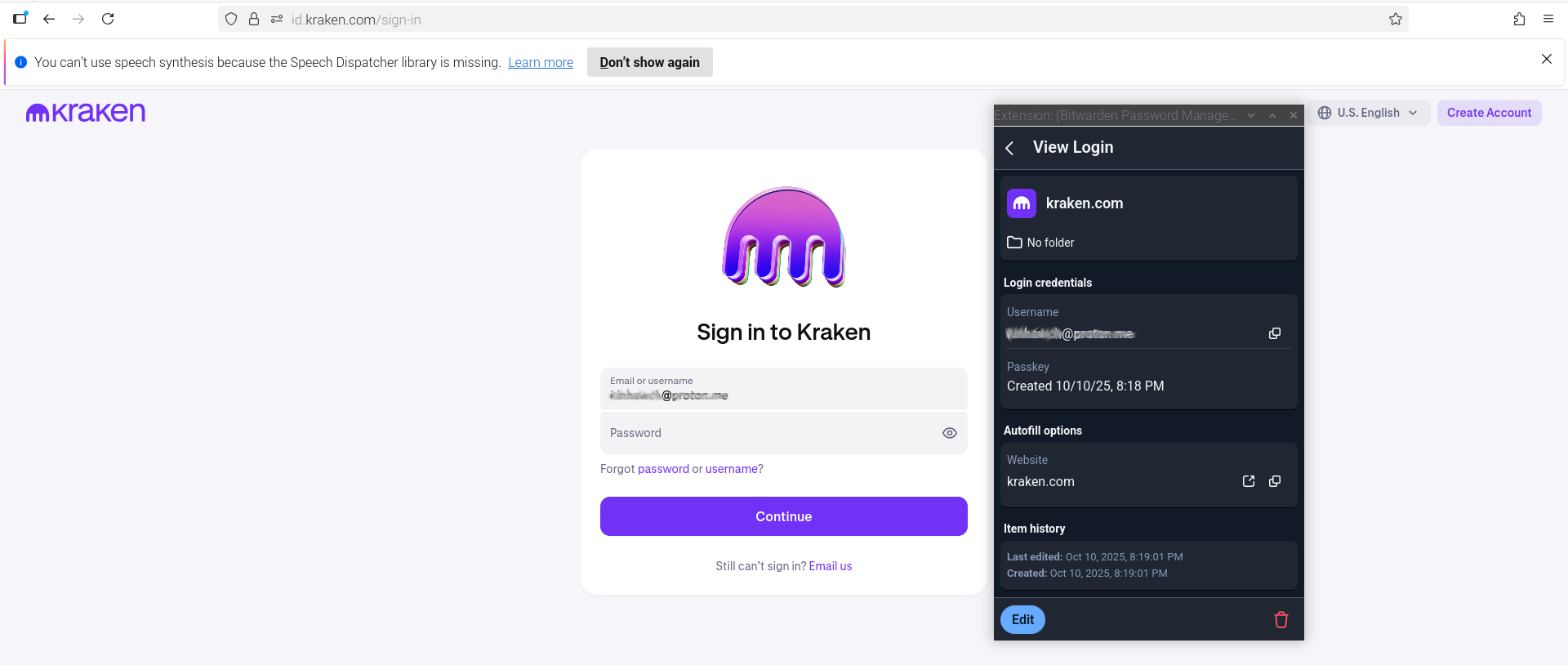
Hello, I’ve started using autofill and it seems to struggle to populate with the correct username or password or passphrase or passkey?
For example, I have a Kraken account and a Kraken Pro account (for the record, I don’t trade as it’s 10x risker than gambling at the casino. I also consider the vast majority of PoS to be scammers, although legit purposes exist like NATO and Estonian government services. I am curious about PoW which is why I have these accounts, for research with small amounts).
Bitwarden appears to have created 2 unnecessary autofill accounts, even when I have granted access permissions to my previously off limits blockchain credentials (usernames and passphrases).
This website login to Bitwarden, I can’t see the 2 autofill created login accounts id.kraken.com nor kraken.com (as per screenshot 3) anywhere, in either Password Manager nor Admin Console?
After several hours, all 4 autofill results are now appearing, however 2 are in:
Bitwarden → Vaults → Password Manager → kraken.com and id.kraken.com
Bitwarden → Collections → Admin Console → Organisation collections → topSecretAccount (now accessible from main account).
So I guess I’ve found my original 2 accounts in the topSecretAccount, which I granted permission to, specifically so Autofill could find them and autofill (in preparation for passkeys).
So my question is why is Autofill adding 2 new accounts? Is there a way I can clean this up so Autofill uses my original accounts? I know I could delete all 4 and start again, but I would like to run by the forum for any input, perhaps for a correct setup before I move forward with more.
The autofill feature does not ever add new accounts by itself, so you will have to provide more information about what actions you’ve taken if you want an answer.
It looks to me that you created two passkeys for the Kraken site (at least one of them on Oct. 10, as shown in your first screenshot), and that the Bitwarden browser extension could not find your existing Kraken accounts at that time (because your password manager account did not have access to your “top secret” collections as of Oct. 13). Thus, the October 10 passkey was saved in a new vault item. When you created the second passkey, there may have been an option to overwrite the first passkey (which you may have elected not to do), or the option may not have presented itself if the two URLs were sufficiently different.
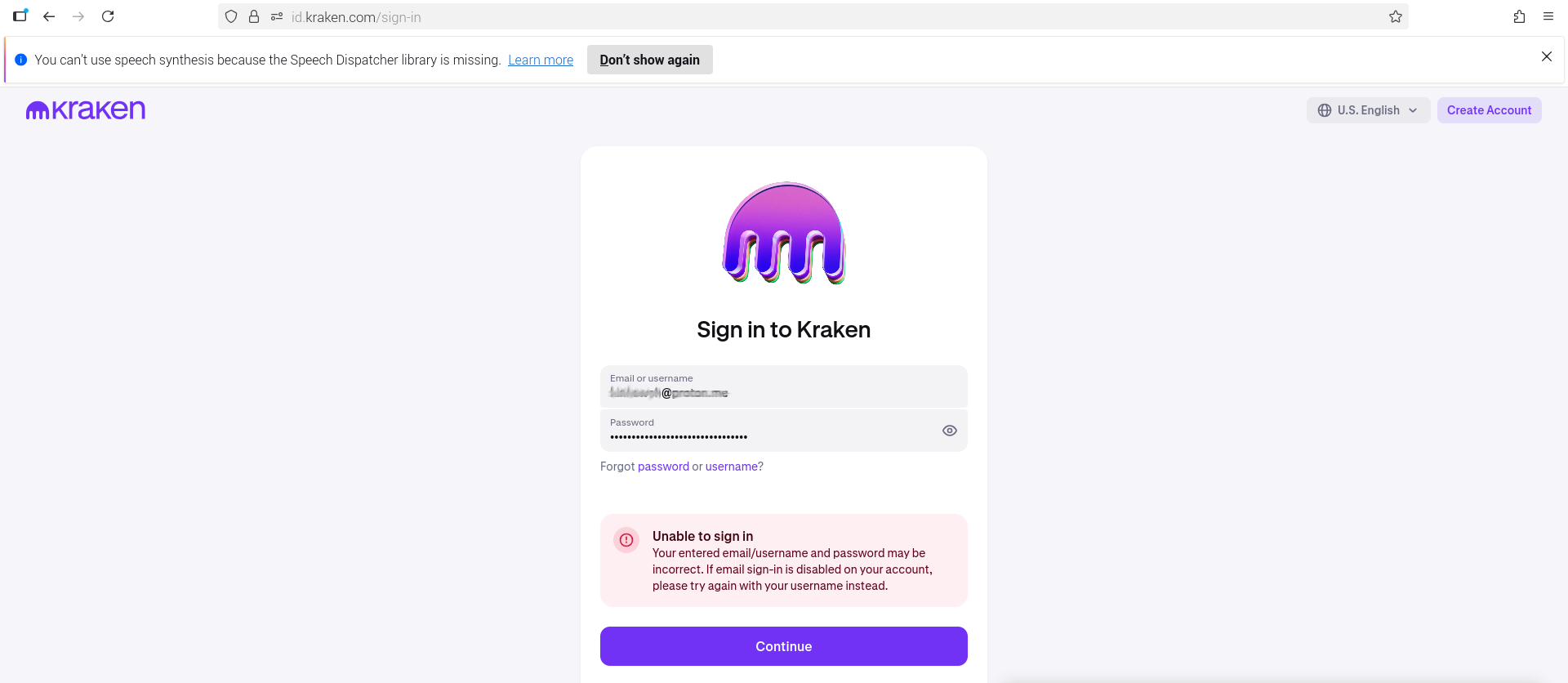
It’s unclear why there is an “Unable to Sign in” error message in your second screenshot, but perhaps you’ve autofilled your Kraken Pro credentials on the Kraken site (or vice versa).
Autofill does use your “original accounts” (now that you’ve granted permission to access the “top secret” collection). Autofill will also try to use your two new vault items (with the passkeys); if you want to prevent this, you’d have to delete the “Website (URI)” strings from those items, or set the URI match detection method for those URIs to “Never”.
Are you perhaps trying to ask something different — e.g., how to move the newly created passkeys into the original “top secret” vault items? It is not possible to move passkeys from one vault item to another, so you’d either have to copy the username/password (and other) information from the original items into the items that have the passkeys, or delete the passkeys (they must be deleted both on Kraken’s server and in your Bitwarden vault) and create new passkeys to be stored in your original login items.
@kotgc Unrelated to the above, but if you are using the Bitwarden browser extension, you should really have it pinned to the top of your browser window. Instructions for how to pin the browser extension in Chrome, Firefox, and Safari are available here.
I will delete the newly created passkeys, so I can keep my old “top secret stufff” in the same grouping for future potential changes.
Added complications are that
Kraken.com keeps re-routing and re-logging in with old kraken.com password manager details, into a new prokraken website. I checked the krakenpro website’s security which has no passkey, only a username/passphrase. I assume I will need to login first before deleting passkeys on the password manager, otherwise I won’t be able to login to the passkey protected website without a passkey that’s been deleted on the password manager’s side?
Kraken requests an MFA verification, as I have to log in to kraken.com on the browser and pro.kraken.com on the browser’s incognito. However I entered the MFA code from the app’s prokraken and this was denied, so I tried the MFA app’s kraken MFA code and this worked on the prokraken website.
It’s a mess, and I’ll need more time to clean all this up, not to mention probably being timed out for security risks, this could be a week/month project.
Unsure why pinning the extension is recommended. This is straight forward, but could you elaborate please?
Yes, if the only active login method on your Kraken account is the passkey login, you would have to log in first, and remove the passkey from your Kraken account (on their website). After you have done so, you can delete the passkey that is stored in Bitwarden.
I would strongly advise you to create a vault backup (export) before you start deleting credentials or passkeys from your vault. For example, in the browser extension, go to Settings > Vault Options > Export Vault; select “json (Encrypted)” as the File Format for the export. If you plan to delete anything from your organization vault, you will have to create two exports: one with the Export From option set to “My Vault”, and another one with the Export From option set to “Organization”.
After you have been re-routed to the correct login form, copy the full URL
string from the address bar, and paste it into your response. Do the same for both the KrakenPro and the “regular” Kraken login page. I would like to compare the two strings so that I can offer you some advice for optimizing your setup.
This doesn’t make any sense to me. What does incognito have to do with it? What does this have to do with MFA?
This means that you made a mistake when configuring the MFA for your Kraken/KrakenPro vault items. This can be fixed once I understand better what you have going on.
Two reasons:
It provides you with one-click access to all of the functions in the Bitwarden browser extension, simply by clicking the Bitwarden icon at the top of your page.
It protects you against phishing attacks, because if your browser has opened a legitimate webpage for which you have account credentials stored in your vault, you will see a “badge counter” (a small black square containing a number, overlaid on the corner of the Bitwarden icon; the number indicates the number of different vault items that can autofilled on the website). In contrast, if you have landed on a phishing page, there will no badge counter displayed on the Bitwarden icon — this will be a warning sign that you should not attempt to copy & paste (or manually type, or otherwise submit) your login credentials if autofilling has failed on that login form.
Challenge 1
2 separate websites.
There is no correct login form per se, there is a website with easy UX and higher fees and a 2nd website with complicated UX and lower fees.
Kraken normal: https://www.kraken.com/ → tap Log in → https://id.kraken.com/sign-in → enter username/passphrase and/or passkey
Kraken pro: https://pro.kraken.com/ → tap Log in → https://id.kraken.com/sign-in → enter username/passphrase and/or passkey
Challenge 2
Re-routing.
I use incognito for the 2nd website login, as otherwise Kraken normal will be re-routed to Kraken pro (even somehow when using my different credentials (username/passphrase).
Challenge 3
MFA.
MFA is then a 3rd and separate challenge.
MFA Kraken normal was set up first as I learned.
MFA Kraken pro was set up later and messes up the process. (I have informed Kraken however support is a bot/botlike).
I’ll address this challenge 3 after passkeys and Bitwarden storing in oganisations is clear.
Thanks re pin, however autofill wouldn’t appear if not pinned and a phishing webpage, so pin seems to be like billionaires, non essential. Promotion of Bitwarden and seeing the number sounds reasonable, so I’ll try out the pin for a bit.
That’s an odd login system, as the login link URLs are longer (e.g., https://id.kraken.com/sign-in?rfr=pro-web&preferTheme=dark&redirect=https%3A%2F%2Fpro.kraken.com%2Fapp&_gl=1*1nufroh*_ga*ODQxODEzMDE5LjE3NjA1MzQwODY.*_ga_5MVYWBPCBE*czE3NjA1MzQwODUkbzEkZzEkdDE3NjA1MzQxNDEkajQkbDAkaDA.), but the query string (starting at ?) seems to be stripped from the address bar after the page has been loaded.
So it seems that the metadata from the query parameters may be stored in the browser’s user data, and used to determine what site you are logging in to.
I assume that you are referring to the inline autofill menus that appear in the form fields by default. The danger comes from the fact that there are many reasons why Bitwarden’s various autofilling techniques (including inline autofill menus) may not succeed 100% — rendering of the menus requires Bitwarden to inject code into the website’s HTML page, and that code must accurately detect where the username and password fields are (or even that the fields are present). If this process fails, then the inline autofill menus will not be rendered, and you will need to use a different method for entering your credentials.
In this scenario, the only way you can distinguish between a legitimate login page (with malfunctioning autofill menus) and a phishing site is to know whether Bitwarden has matched your login credentials to the webpage URL. Glancing at the Bitwarden icon tells you immediately whether the URL is a match or not.
Furthermore, if you use relaxed URI match detection rules (e.g., you haven’t modified the default rule, which is “Base Domain”), then you are at risk for theft of vault data by malicious sites using schemes similar to the ones described here; keeping an eye on the badge counter in the pinned Bitwarden icon can serve as a warning that there is a risk of matching credentials being harvested by the opened webpage. For example, if your vault includes login credentials for the website legitimate.example.com and a phishing attack has you open a webpage at malicious.example.com or www.example.com/malicious, then your account credentials for legitimate.example.com will be at risk of being stolen (if you use “Base Domain” matching). For example, in the “clickjacking” scheme that I linked, the phishing site would not even look like a login form — it could just fool you into clicking anywhere on the malicious webpage (e.g., using a button for accepting or rejecting cookies, which are very common these days), which could result in your credentials being stolen. If you notice that there are matching vault items by seeing the number in the badge counter, but you are not on a login form, then that should alert you to the risk of credential theft.


 Thanks re pin, however autofill wouldn’t appear if not pinned and a phishing webpage, so pin seems to be like billionaires, non essential. Promotion of Bitwarden and seeing the number sounds reasonable, so I’ll try out the pin for a bit.