It is a bit frustrating that BitWarden Chrome extension only relies on catching the account creation event. It is reliable in like 30% of cases so it became a habit to save username and password in notepad.exe so I can create an account entry after I created an account. These entries should be auto-remembered when generated so I can just create entries using them instantly. I do not want to create an entry for new account before I create an account because it can fail and it will leave the entry that is invalid. Either make sure that popup “do you want to save this password” always shows up, or add autosave. It is even more frustrating when using the aliased emails, cause I cannot copy to the addon email and then password. Once window is gone, then it loses the details I entered so I have to manually enter email and copy the password.
@alkuzad Welcome to the forum!
To be honest, I’m not exactly sure what you’re asking for, so I would like to get a better idea of it first…
-
“Ask to add login” and “Ask to update existing login” are already there in the browser extension (Settings → Notifications), so I can understand some frustration with it, but asking for something that is already there… - I’m not sure if that’s what you did? (or are you asking for something else?)
-
If you want a better / improved detection of the “add login” and “update login” notifications, then there probably already is an existing feature request for that: Improve password change/creation detection
-
If you meant (also?) that generated passwords, passphrases and usernames should be “auto-remembered”, then there is already a solution for that: if you open the the browser extension and go to the “Generator”, then scroll down and open “Generator history” → everything you generated with that browser extension should be stored here (as long as you don’t log out on the extension).
Could you please explain this sentence to me?
- When they (entries in the vault?) are generated, why should they be auto-remembered then also?
- And why do you want to “auto-remember” them “so you just can create those entries”? (when they would be auto-remembered you still want to create them afterwards?)
Actually, that would be far easier than what you describe - and we usually recommend that here. If you use the + New button in the browser extension and create a new login, then you can
- generate a password/passphrase in that dialog
- generate a username in that dialog
- add URIs and anything you want (like notes)
If you store that, you can use that entry to autofill (e.g. via drag & fill) those infos for account creation on any given website. – If the site doesn’t accept something, just edit the entry in your vault, and “fill” it again to the site for account creation. – That way always works for me.
I can only repeat that there already is an existing feature request for an “improvement” regarding those pop-ups - but “add autosave” is a bit confusing, as it already exists (like I described it in the first point of my post here). So please make it more clear what you are requesting.
The method I just described above allows also generating an alias email (username generator) and store that in the new login item directly.
I would recommend that method for account creation.
If, by “autosave”, you mean that the entry will be saved without the need for the user to click a confirmation prompt (which is the current behavior of the existing “Ask to add/update existing login” feature), then this would also have the ability to create and invalid entry in the vault (if the password is rejected).
This is the method I would recommend for you (taking into account your aversion to saving invalid passwords, even temporarily):
- Open the browser extension and click
 New > Login.
 - Click the
 button to pop out the extension window.
 - Arrange the browser window and extension pop-out window side-by-side on your screen (or display them on two separate screens, in a multi-monitor setup).
- In the extension pop-out, enter or generate your username and password.
- In the extension pop-out, toggle the visibility of the password.
- Highlight the username in the extension pop-out, then click-and-drag the selection, moving the mouse to the website’s username input field before releasing your mouse button.
- Highlight the password in the extension pop-out, then click-and-drag the selection, moving the mouse to the website’s password input field before releasing your mouse button.
- Submit the web form.
- If the credentials were accepted by the website without error, then click Save at the bottom of the extension pop-out window; otherwise, fix the problematic credentials and go back to Step 6 or Step 7, as appropriate.
The above is much safer (and probably more convenient) than the method that you are currently using.
What “window” are you referring to? If you are talking about the browser extension window, then please specify which version of the browser extension you are using. In version 2025.6.1, the Bitwarden browser extension remembers what was entered, even if you close and re-open the extension window.
No, I mean it will keep these entries in the “cache” so I can go to addon and click “create from saved” or sth like that.
Which button? I do not see any?
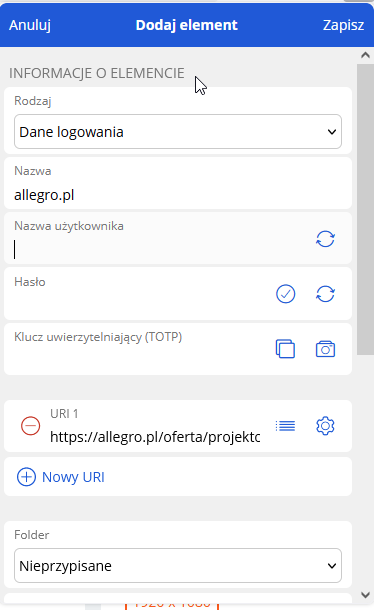
edit: oh I get it, the button is on the main page not inside the add new entry page (where “Cancel” replaces the popup). I will give that it is a bit easier this way but also this “detached” state means I have to also copy url because it’s no longer bound to the page
You are using a deprecated version of the browser extension (which explains a lot of the issues you are encountering). The up-to-date version (2025.6.1) looks as shown below — the pop-out button is visible in the upper right corner:

I would recommend that you update your browser extension for a smoother experience.
This is not true in modern versions of the browser extension.
oh, Firefox was set to auto-update but it was stuck on old version with the new not popping up. Reinstalled the addon, let’s see how the experience is in this version. It is pretty scary why it did not upgrade
There have been a lot of changes in the meantime (from the version you are used to), so some things might be confusing or feel unnatural at first. Do check all of the customization settings in Settings > Autofill, Settings > Notifications, and Settings > Appearance, and experiment with different options until you find something that works for you.
If you have questions about how to use or configure the new extension version, feel free to post them in the Ask the Community section of the forum.
I will schedule this feature request topic to be closed, since your request makes less sense in the context of the new browser extension UI. You can always open a new feature request after you have become familiar with the new UI.
@alkuzad It can’t be stressed enough what @grb wrote here - e.g. the separate copy buttons and the “old” autofill behaviour of clicking an item to autofill can be reverted in that new UI if you would like them back.
Two additional tips:
You can toggle the new filters (1) and collapse/expand the “Favorites” and “All items” sections in the new “Vault” tab (2):

This topic was automatically closed 30 days after the last reply. New replies are no longer allowed.