It is strange that I can log into my account on my phone but not on my PC. It’s so happened that my authenticator is now reinstalled so there is no link between it and my BitWarden account. What can I do to make my PC account work and as well how could I reestablish the authenticator link with my Bitwarden account. Any hep is greatly appreciated!
Hello and welcome to the community  ,
,
Regarding logging in on your PC:
- Are you having problems logging into the web app or the desktop app?
- Can you log into the web app?
- If you are having problems with the desktop app, what version is it?
The most common issue with logging in is not selecting the right cloud for access. The following login screen is from the extension, but the layout is similar to the desktop app. Are you selecting the same cloud for both your phone (click on the email initial/name icon and see what’s underneath the email) and your desktop?
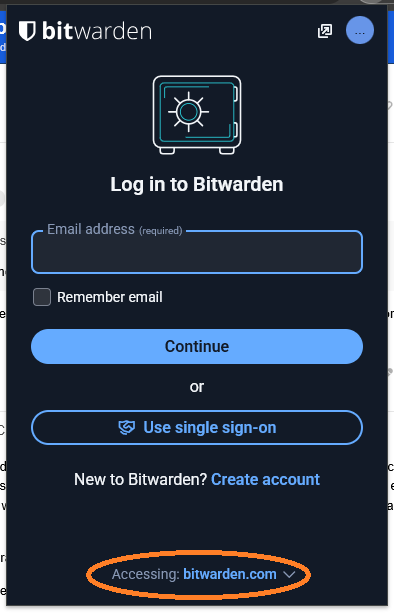
Anyway, just in case, you may want to export the Bitwarden vault on your phone to ensure that you have a backup.
Here are some community tips on how to figure out why you can’t log in:
https://community.bitwarden.com/t/guide-i-cant-login-some-tips-for-login-problems-issues/82188
Tks Neuron5569! I have to admit I am still trying to make sense of a lot of jargon. What I can report now is that I have found out that the fingerprint for my Web app is distinctly different from the one on my phone app. What does this mean? The email I used for my Bitwarden never changed for both accesses. Before I had this problem with my Web account, I used exactly the same master password as well as the same email for both logins. Now, my Web access does not deny my password entry, but it demands verification code which I no longer have as my authenticator is reinstalled so it does not have Bitwarden linked with it. I tried to create an authenticator link via my phone app, but could not find any way to achieve that. What should I do?
- Did you ever store the TOTP seed code for that “authenticator link” on your emergency sheet? → If yes, you could set up that “link” again.
- Did you ever set up any other method of 2FA for Bitwarden? → If yes, you could use now any of those other methods to log in.
- Can you remember ever writing down / storing your 2FA recovery code anywhere? → With that code you would be able now to deactivate 2FA for your BW account and to log in again.
If the answer to all three questions is no, then unfortunately your account is lost now. (and there is no way around it)
And in that case, you should disconnect your phone from the internet, stay logged in in that BW app and make an export of your account ASAP. – Unfortunately there is a current bug with password-protected exports from the mobile app, so I would recommend to make an unencrypted JSON export now.
Best thing: create a new BW account and try to import directly, to see if the import worked.
After you did all that and made sure you “rescued” all data, you can consider deleting your old account.
Don’t forget to create an emergency sheet now for your new BW account (with at least the email address, server region, master password and 2FA recovery code on it…). Also make regular – or at least casual – exports/backups of your BW vault a habit. (here is a backup guide: bitwarden_reddit/backups.md at main · djasonpenney/bitwarden_reddit · GitHub)
PS:
Probably you ticked “Remember me” for the 2FA request on your phone – that’s why you can login there just with your email and master password.
PPS:
That “link” for authenticator app 2FA can only be re-established by either entering the old/current TOTP seed code again – or by creating a new “link” in the BW web vault (vault.bitwarden.com or vault.bitwarden.eu), so as long as you can’t log in to the web vault, it can’t be “re-linked”… that’s why I wrote before, that your account would be lost in that case…
What authenticator did you use to capture the Bitwarden 2FA? Do you have backups of its data, either in the cloud or locally?
… addition to above: if you ever created a login-passkey for your Bitwarden account/vault, this would also make it possible for you to log in to the web vault again.
The Bitwarden Web app (a.k.a. “Web Vault”) does not have biometric (fingerprint) unlocking capabilities, so my best guess is that you are actually describing the Bitwarden browser extension. Please confirm.
When Bitwarden prompts for the verification code, does the phrase “We don’t recognize this device” appear anywhere in the prompt? Alternatively, do you see an option (button) labeled “Use your recovery code”?
When you “log into” your Bitwarden account on your phone, do you see an Unlock button or a Log out button anywhere on the authentication screen?
Finally, I would highly recommend that you use your phone to create a vault export using the format “.json” — not “.json (Encrypted)”. Store a copy of the export file in a secure location (e.g., on an external USB drive) and then delete the original file from your phone.
Thank you all, my friends! Again, I am not sure about some jargon here. Trying my best, let me elaborate more on my situation: My phone is Pixel, and I am using my finger print to login my phone account, I don’t remember or at least not consciously did anything in particular with my phone account. I did create my Bitwarden account first on the Web.
If you mean the BW mobile app (that you are using on your Pixel phone), then that fingerprint is not for login, but only for unlocking the app. (What’s the difference between log in and unlock?)
Okay, then let’s take a step back and check something again. When you try to log in now… the “request” you see – does it look like this (option 1):

… or does it look like this (option 2):

?
(the exact wording is more important here than the design)
The best you can do to help us help you is to provide direct answers to our questions. For example, could you please provide your responses to the four questions I posed above?
Yes, grb, I have already exported via my phone account, never realized that there is such an option. As for the finger print phrase, I just cannot regenerate that login screen any more, and cannot remember how that occurred. I never saw anything like that before. I recall it asked me to compare that phrase with another, whcih I turned to my phone account to locate its finger print phrase. And yes, I did see use a recovery code at one point, but I don’t have any one. Funny I have kept some of those codes for other apps in Biwarden, but never did it for Bitwarden.
As @grb and me already pointed out: it is extremely important to not use the password protected export at the moment, because there is a bug with that (only for the mobile apps).
You probably tried to use the Log in with device-option. As your issue seems to be around the “second step”, Log in with device doesn’t help you with that (you could say it replaces only the master password, but not the “second step”).
Oh, to be honest, that may be a bad sign. But to be certain, as @grb just pointed out, please answer the open questions we both stated in the last few posts.
So it seems hopeless with my Web account, right? Because I can access via my phone, that is at least not a fatal problem if I try to find a silver lining. Should I just abandon any effort to recover that Web account, and instead, create a brand new Web account? I am still at a loss why two accounts with the same content requiring different authentication and with different fingerprint phrases.
We don’t know yet. For that you’d have to answer the questions that @grb and me stated in the last few posts.
Only when we get an answer to our questions, we can recommend what to do next.
If it is the same email address on the same BW server region – US/.com or EU/.eu – then it’s only one account you have.
And you’re probably doing two different things on your phone and with the web vault.
On your phone, you probably only lock your BW account – and unlock it with biometrics. (you’re not logging out and logging in there at the moment, but stay logged in so that you can lock and just unlock – and please don’t log out as long as we don’t know what the next step is)
On the web vault, however, you have to log in now, because you’re logged out. And because you’re logged out on the web vault, you can’t just unlock the web vault. (you can only unlock an account, when you’re logged in there – maybe confusing right now, but that’s how it is)
But, the most important thing now: please answer our (@grb’s and @Nail1684’s) previously posted questions now. Otherwise we are not able to help you.
Sorry if I did not answer all your questions. I am NOT sure what is or are missing. Some of things you mentioned, I have to admit, I have no idea what they meant much less what I should do. Looks like I have to learn quite a lot. I will try first now to find out the exact distinction between lock and log out
Okay, then let me re-state the – I think – most important point now:
Please open your browser and go to the web vault (either vault.bitwarden.com for the US server region or vault.bitwarden.eu for the EU server region).
There, try to log in with your email address and master password… and the “request” you then see – does it look like this (option 1):
… or does it look like this (option 2):
?
(the exact wording is more important here than the design)
→ Do you see “option 1” – or do you see the “option 2”? (i.e. regarding the wording, which of the two options matches with what you see?)
Tks for the further clarifications! I tried to access vault.bitwarden.com, and the attached (first one) shows Welcome back, and the second one is what I see using regular to access. I deleted the second one as I have the permission to attach only one, and also changed the second link to “regular” for the same reason.

Sorry, I was not allowed to reply any more yesterday (I am now travelling in Asia). What I can see is different from the one you showed. I am not even sure if my reply has been posted.
Okay, from that screen: when you enter your master password then, which of the two options I mentioned before do you see?
(PS: If you don’t know which two options I mean: here the direct link to the post where I mentioned them: Accessible on phone but not on PC - #16 by Nail1684)
