Moving items from a collection to a folder

Good evening ‘grb’ –

And now for something completely different, but somehow related. And I have no idea how to search for it in the community archive.

While awaiting your reply on the above issue I decided to move to the Android A8 tablet and see whether I could use the Bitwarden mobile app to log into a selection of sites. Went OK for awhile, then weirdness set in. Login to a banking online site failed, and more to the point the Bitwarden item for that site also disappeared. I moved to my Win 10 desktop, re-created and then saved the item, then found on the tablet that there were two nominally identical items in the same folder in my vault. By adding a unique text string to one of them I could determine that while one was duplicated in the shared collection as it had been initially, the other seemed to be “free-standing” in my vault – probably the one I had just created. But both were nominally identical. It appears that Bitwarden mobile app could tell them apart, but I don’t know how. And more to the point, I was stunned to find that two such moninally identical items could be created and co-exist. Ever seen that happen? Too much excitement for one long day…

Martt

@Martt Sorry to hear you are still having trouble with this.

Before I attempt to respond to your latest posts, may I suggest completely different strategy for accomplishing your goal? This approach has its own little wrinkles, but perhaps you will find them more manageable than what you’ve encountered in your attempts to clone organizational items.

The alternative strategy that I am suggesting to you is to export the data from your vault, and import the data into your wife’s vault. The three drawbacks of this approach are:

  1. Bitwarden does not offer a lot of control over what items are exported, so you will probably have to export everything, and then manually edit the exported file before you import it into your wife’s vault.
  2. The need to manually edit the file means that you must export using the unencrypted .CSV file format, which carries some risk that your passwords may be exposed to prying eyes after they have been exported from the safety of your vault. You can reduce this risk by promptly deleting the .CSV file after you have completed the import.
  3. The need to work with the .CSV file format limits you to transferring only login items and secure note items; credit card items and identity items stored in your vault cannot be exported using the .CSV format.

You can export and import from any of the Bitwarden apps, and even from the browser extensions. However, the instructions that follow assume that you are working in the Web Vault.(in the Password Manager section, not the Admin Console).

To export, go to Tools > Export Vault. If the items that you are transferring are stored in the organization vault (e.g., in your “Holding Tank” collection), then set the “Export From” selection to your Family organization vault. Set the “File Format” to “.csv” and click Confirm Format; you will then be prompted to enter your master password, after which you can click Export Vault. Depending on how your browser has been configured, the export file will either be automatically downloaded to your default Downloads folder (a folder on your computer), or you will be asked where you wish to save the file. Do make a note of where the file is saved, and the name of the file (something similar to bitwarden_org_export_20241125201929.csv).

Now, open the exported file using a spreadsheet app (e.g., Excel), and delete any rows that you do not wish to transfer to your wife’s account (remove the rows completely, do not leave empty rows where you have just deleted the contents). Save the edited file.

After you have done this, log out of your account and log in to your wife’s account (again, the instructions that follow assume that you are using the Web Vault). To have better control over where the imported data end up, I suggest that you first create a folder (not a collection), named “Imported Items”. Next, go to Tools > Import Data, and set it up as follows:

  1. Set “Vault” to “My Vault”.
  2. Set “Folder” to “Imported Items”
  3. Set “File Format” to “Bitwarden (csv)”.

Then, click Choose File and select the modified .CSV export that you created previously. Finally, click Import Data.

You should see a success message that looks something like this, and then you can just click OK:


Your wife should now be able to find the transferred items in her “Imported Items” folder. From there, the items can be moved into other folders as needed.

Important: When you’re finished with the above, make sure that you permanently delete the .CSV file from your computer (completely removing it from the “Trash”/“Recycling” folder).

I will respond to your earlier posts in a separate comment (although this may have to wait while I attend to other duties).

You can create two 100% identical vault entries and they will coexist without issue. This works because each item has an “ID”, which is not visible in the GUI, but serves as the unique key in the vault “database”. It is visible if you do a JSON export.

Most likely, your search settings were narrowed down to just one particular vault (or maybe a particular folder).

One thing I suggest when reorganizing is to first create a backup of both your personal and the organizational vault (unencrypted or password-protected JSON is best, and store it off-line). That way, if something appears to go horribly wrong, you can rest comfortably, knowing that the backup is there. I create a backup just before I making changes that could touch more than a handful of entries, including changing my Master Password, 2FA, email address, or encryption settings.

Thank you for your comments, DenBesten. This lets me understand how two seemingly identical items can co-exist. I still have questions as to how this problem could have occurred, but since I am very inexperienced with Bitwarden it’s at least possible that I had a unintended duplicate item that “puzzled” the tablet and led to the problem. My wife’s bitwarden entry for this exact website worked perfectly, but my bitwarden entry did not. Both had previously worked OK for the same website from my Win 10 PC however.

I had expected that the transition to Bitwarden would be a challenge, but not this big a challenge. There’s an abundance of information on the BW site, but certain issues like “which version of the BW app am I working with?” seemingly only become clear after considerable use. The combination of new terminology and lack of flow charts makes it difficult for a newbie to understand some of the interactions and processes.

Martt

To help with this question, you may benefit from reading the discussion in the thread linked below:


Please let me know if you have seen my response above and if you need any further assistance with your vault configuration.

Hi ‘grb’,

I had missed your comments immediately prior to those of DenBesten; just read them. For now anyhow, I’m going to “Plan B” that for me will get the job done quickly: delete the items that I transferred from my vault to our shared collection, then re-create them as new items in her vault. That injures nothing but my pride!

But I do want to learn how to perform this transfer process, so when you have time please explain again. Obviously I have not gotten it correct yet.

Martt

You have two options: One of the options (export followed by import), I have explained already in detail, in my comment above.

The other option is what you were trying to do (move items from your vault to a shared collection, and then clone the item into your wife’s individual vault). I believe that the confusion you were experiencing with this approach was caused by the fact that there does currently appear to be some kind of bug that prevents successful cloning of an organization item into an individual vault. For some reason this no longer works in the Web Vault, Desktop app, or in the regular version of the browser extension (version 2024.11.2). Until this unfortunate bug is corrected, your only option for completing the cloning task is to use the “beta” version of the new browser extension (version 2024.11.9991), which can be installed on any Chrome browser from this app store page.

If you are going to attempt this method, you first need to ensure that your wife has “Can Manage” access to the “Holding Tank” collection; she does not need to have her role changed from “User” to “admin” or anything else. Below is what you should see if you log in to your (Family Plan Owner/Admin) account in the Web Vault, and go to the Admin Console:

If you click on your wife’s account in the list above, you should see the “Edit Member” dialog, as shown in the screenshot below. Click on the “Collections” tab, and confirm that she has “Can Manage” permissions for the “Holding Tank” collection:


If you haven’t already moved the items to be transferred into the “Holding Tank” collection (from your individual vault), you should do so now. I believe that you already know how to do this, but basically: switch from the Admin Console to the Web Vault Password Manager app, use the checkboxes to select the vault items to transfer, click the kebab icon at the right edge of the column titles, select “Assign to collections”, then specify the “Holding Tank” collection and click Assign.

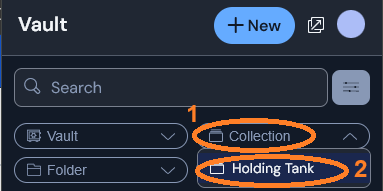
Next, use the beta version of the Bitwarden browser extension to log in to your wife’s account, then click the “Collections” filter (1), and select the “Holding Tank” collection (2):

Now, for each item, one at a time, click the kebab icon for that item, and select “Clone”:

At this point, in the new item page, click the selection arrow for the “Owner” field (1), and select your wife’s email address from the menu (2):

Optionally, change the “Item name” (e.g., to remove the automatically appended suffix “- Clone”).

Finish by clicking the Save at the bottom.

After all items have been cloned from the “Holding Tank” collection into your wife’s individual vault, then it would be wise to delete the original items from the “Holding Tank” collection. You can delete these items all at once if you use the Web Vault. If you need instructions, please let me know.

Apologies, I didn’t realize that there is a bug that has made the cloning step not work in the other apps. Hopefully it gets fixed soon, after which you should be able to do the above steos within the Web Vault, or within the Bitwarden Desktop app.

Good morning grb,

Thank you for your explanation of why transferring files from our shared collection to my wife’s vault was proving impossible for me. But in the process I learned somewhat more about Bitwarden than I would have otherwise. Apps have become so feature-rich that it has to be a nightmare for the developers to keep all the features integrated and operable. And that means that user advisers like you can’t readily keep up either. No harm done.

I will point out that Bitwarden fit my requirements very well, or I’d have been less motivated to get this to work. I need a password manager that (1) works across Windows laptop, Android phone and tablet and Apple phone and tablet; (2) provides protection for data at rest and in motion; (3) can be edited without an internet connection; (4) provides synchronization across all platforms when internet connectivity is available; and (5) provides the capability to save text information related to each login. That’s why I chose Bitwarden.

If you’re in a position to suggest upgrades, here’s one that I’d appreciate. In KeePassX, outdated now and primitive by comparison with BW, there is the ability to easily add and update text notes for each login. I have used it for years to keep a running commentary on issues that tend to show up over time and are easily forgotten. I copied those notes into Windows’ Notepad, my all-time favorite app for reducing almost any text input to UTF-8, saved the resulting document to desktop and then attached that file to the relevant BW item. Worked fine and maybe there was a simpler way, but I’m pressed for time. BW already has a comment space which I am using for notes related to login etc; info you might need for login. If there were a provision for a separate “notes archive” for each BW item, one that could be readily opened/edited/re-saved, that would be convenient for me. And by “archive”, one stream-of-consciousness document would be enough for me.

Martt

What do you find insufficiently easy about editing the Notes section that Bitwarden provides for each login item? How could this be made easier?

Hi grb. I probably didn’t make it obvious. The Bitwarden viewport is pretty small, and any time you click anywhere on the browser outside that port, it disappears (I assume that’s so the user doesn’t accidentally leave information accessible). So I use the existing Notes window to display compact notes about easily forgotten issues such as “site will send 2FA to cellphone xxxxx” or “logout is hidden under yyyyyy in the welcome stripe”.

But when I need to refresh my memory about details of a past or occasionally recurring problem with that website, I need some space. In many cases, 1 - 3 pages of 12-point text. Not displayable in the viewport, but readily saved since it occupies perhaps 1.5kB per page. So now if it were (for me) more convenient to open such a note, perhaps add to it, then save it without re-naming it, I’d be happier. But the existing attachment scheme is OK for me.

Martt

You can get a larger viewport by clicking the “pop-out” button in the upper left of the browser extension (although until the new browser extension UI is released, you will have to remember to use the “pop-out” button before opening a vault item to view it:

image

This will display the browser extension in a separate browser window, which you can resize. The width of the Notes area will scale automatically as the browser window is made wider (although at most to about 60 characters in width), and to increase the height of the Notes area, you can click and drag the resizing handle in the lower right corner:

image

Here is an example of a long note, with the Notes area enlarged using the methods described above:


I’m baffled by the need for 3 pages of text to document problems with a website login — perhaps it is time to abandon a website that has so many problems!

Regardless, this brings me to the fact that there is a limit of around 7000 characters (the example note above contains 7413 characters). In 12-point Times New Roman font, this corresponds to about 2 pages of single-spaced text.

Thus, if you think that you can keep your notes to 2 pages of text, then I feel like the existing Notes feature should work for your purpose. You can also use Bitwarden’s Desktop app when you need to read or edit very large text notes — this will display notes with up to 80 characters in width, and a Notes area height that is limited only be the size of your computer monitor:

Hi again grb. There are definitely significant problems with some websites, requiring substantial space for notes. Yet interacting with them is necessary.
Sometimes problems with logins but more commonly problems with issues like being locked out for no obvious good reason, followed by back-and-forth with customer support staff that don’t have sufficient understanding of the underlying problems. I find my notes helpful; others might not. It was simply a suggestion, triggered by the fact that KeePassX made the practice simple (but for many reasons, KeePassX was also obsolete and I had to make a transition).

Martt

I’m still not clear about what aspects of Bitwarden’s Notes you find not to be “simple”.

Also, if you generally liked KeePassX, why not migrate to KeePassXC, which is still actively maintained?

1 Like

grb,

KeePassX doesn’t do much beyond provide data-at-rest encryption and local storage, generate passwords upon request, and provide text storage space with each ‘item’ (using BW terminology). It may be capable of more, I don’t know. I use it on a single PC and for a long time its capabilities were sufficient. But once I found myself in a situation in which I needed to propagate and synchronize information across multiple platforms it was clear that a cloud-based approach was needed. Bitwarden has received good reviews and as I noted previously, provides a range of features I need. It’s entirely possible that other apps would have been suitable as well but I wasn’t looking for a comparison test. I needed a workable solution, quickly, and I think BW fills the bill. But due to inexperience I didn’t realize there would be a substantial learning curve. And without meaning to be impolite, the BW website reminds me of Verizon’s: the information you need is there, but good luck finding it on your own. So I was very grateful to be in contact with you and several other BW helpers.

Martt

1 Like